
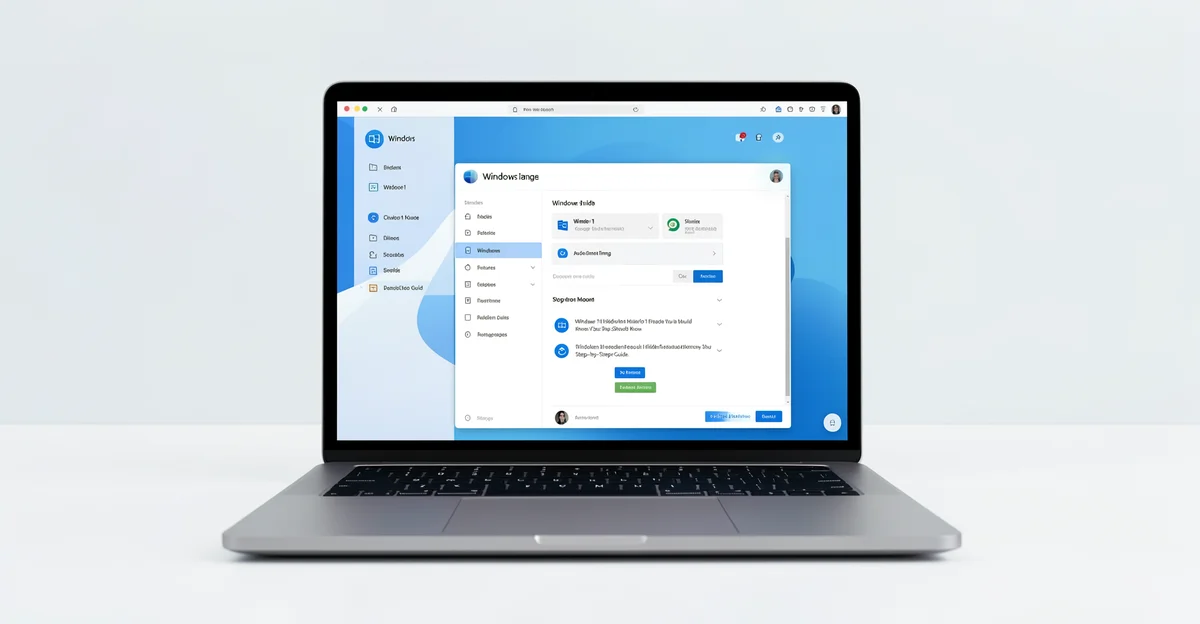
Windows 11 is packed with powerful capabilities that most users never discover. Whether you’re a beginner exploring your first PC or an IT administrator managing dozens of devices, knowing the Windows 11 hidden features can dramatically boost your productivity and simplify everyday tasks.
In this guide, we’ll uncover the built-in tools, shortcuts, and settings that Microsoft doesn’t advertise—but that can transform how you work. From secret productivity hacks to admin-level configurations, these tips will help you get the most out of your Windows 11 experience.
Introduction
Windows 11 ships with a surprising number of capabilities that are enabled by default but never advertised, or that stay disabled until you go looking for them. For casual users, these features can save time and reduce friction during everyday tasks. For IT administrators, they can reduce support tickets, tighten security, and simplify fleet management across dozens or hundreds of endpoints.
This guide covers Windows 11 Hidden Features You Should Know in practical, step-by-step detail. You will learn what these features do, where to find them, how to enable them safely, and how to roll them out across a managed environment. Whether you are setting up a single laptop or administering an enterprise deployment, the same principles apply.
One important note before you begin: always verify software compatibility with your hardware architecture (ARM64 vs x86). Many hidden features behave differently on ARM-based devices such as Surface Pro X or Snapdragon laptops, and some third-party utilities simply will not run at all. Likewise, keeping your operating system updated before installation prevents dependency conflicts, especially when enabling features that rely on specific servicing stack updates or .NET components.
Key Concepts
Before diving into individual features, it helps to understand the categories they fall into. Hidden features in Windows 11 generally belong to one of four groups.
- Buried settings: Options that exist in the Settings app or Control Panel but are several menus deep or renamed from their Windows 10 equivalents.
- Disabled-by-default features: Capabilities that Microsoft ships but leaves off for performance, compatibility, or privacy reasons, such as some virtualization-based security components.
- Power user tools: Utilities like PowerToys, the Snipping Tool’s advanced modes, or Terminal profiles that are installed separately but integrate deeply with the OS.
- Management and automation features: Group Policy, Intune configuration profiles, and PowerShell modules that expose functionality not available through the graphical interface.
Architecture and compatibility
Windows 11 runs on both x86-64 and ARM64 processors. Most built-in features work identically on both, but emulation layers, driver availability, and certain security features differ. Always verify software compatibility with your hardware architecture (ARM64 vs x86) before rolling out a new tool. Check the vendor’s documentation for an explicit ARM64 build, and test on a representative device rather than assuming x86 binaries will run acceptably under emulation.
Servicing and dependencies
Many hidden features depend on a minimum Windows build number, a specific cumulative update, or optional components such as Windows Subsystem for Linux or the .NET Desktop Runtime. Keeping your operating system updated before installation prevents dependency conflicts. If a feature appears missing, the first troubleshooting step is almost always to check for pending updates and reboot.
Deep Dive
The following features represent the highest-value hidden capabilities for both beginners and administrators. Each entry explains what it does and why it matters.
Focus Sessions and Clock integration
The Clock app includes a Focus Sessions timer that integrates with Spotify and Microsoft To Do. It silences notifications during a work block and tracks daily progress. Administrators can control notification behavior through Focus Assist policies, which is useful for organizations that need to balance concentration time with compliance monitoring.
Snap Layouts and Snap Groups
Hovering over the maximize button reveals Snap Layouts, a grid of window arrangements. Snap Groups remember sets of apps you snapped together, so you can restore an entire workspace from the taskbar with one click. This is one of the most underused productivity features in Windows 11.
Voice Typing and Live Captions
Pressing Windows key plus H launches voice typing in almost any text field. Live Captions, enabled from Accessibility settings, transcribes spoken audio from any application in real time. For accessibility compliance, Live Captions is a significant addition that many IT departments have not yet documented for users.
Clipboard History and Cloud Sync
Windows key plus V opens clipboard history, storing multiple copied items including images. With cloud sync enabled, clipboard contents follow you across devices signed into the same Microsoft account. Administrators should note that clipboard sync can be disabled via Group Policy for environments with strict data handling requirements.
Nearby Sharing
Nearby Sharing transfers files between Windows devices over Bluetooth and Wi-Fi without email or cloud storage. It is configured per-user in Settings under System, and it can be restricted by policy in managed environments. It is a fast alternative to USB drives for small file handoffs.
God Mode
Creating a folder named with a specific GUID string produces a single window containing every control panel applet and settings page. It is a favorite among administrators who want fast access to legacy tools without navigating multiple menus.
PowerToys
Microsoft’s PowerToys suite adds FancyZones for custom window layouts, PowerRename for bulk file renaming, Text Extractor for OCR from screen captures, and more. PowerToys is free, open source, and updated frequently. Confirm that the installer matches your processor architecture before deployment.
Windows Terminal and Command Line improvements
Windows Terminal replaces the legacy console host with tabs, panes, GPU-accelerated rendering, and full Unicode support. Combined with PowerShell 7 and Windows Subsystem for Linux, it gives administrators a modern command-line environment. For beginners, it is simply a faster, more readable terminal.
Step-by-Step: Rolling Out Hidden Features Safely
The following process works for a single machine or a managed fleet. Follow the steps in order to avoid breaking dependencies or creating inconsistent user experiences.
Step 1: Understand the fundamentals
Start by identifying which feature category you are dealing with: a buried setting, a disabled-by-default capability, a power user tool, or a management feature. Each category has a different risk profile. Buried settings are typically low-risk and reversible. Disabled-by-default security features, such as memory integrity, may break incompatible drivers. Power user tools require installation and update management. Management features require policy design and testing.
Read the official Microsoft documentation for each feature before enabling it. Note the minimum build number, any hardware requirements, and whether the feature is user-scoped or machine-scoped.
Step 2: Assess your starting point
Document the current state of your devices. Record the Windows build number, processor architecture, installed optional features, and active Group Policy settings. On a single PC, run a quick system information check. In a managed environment, pull this data from Intune, Configuration Manager, or your inventory tool.
This baseline matters because hidden features often interact with existing configuration. For example, enabling Clipboard History sync conflicts with a policy that blocks cloud clipboard. Knowing your starting point prevents surprises.
Step 3: Set clear goals
Decide what success looks like. For a beginner, the goal might be “reduce time spent arranging windows” or “type documents without a keyboard.” For an administrator, goals should be measurable: reduce help desk tickets about window management by a set percentage, or enable Live Captions for accessibility compliance across a department.
Write the goals down. Vague intentions like “enable more features” lead to inconsistent deployments and confused users.
Step 4: Gather necessary resources
Collect everything you need before touching a production machine. This includes:
- A test device that matches your target hardware architecture (ARM64 or x86).
- The latest Windows cumulative update and servicing stack update.
- Installer packages for any third-party tools such as PowerToys.
- Administrative credentials and, where applicable, Group Policy or Intune access.
- Rollback instructions for every change you plan to make.
Always verify software compatibility with your hardware architecture (ARM64 vs x86) at this stage. Downloading an x86-only utility onto an ARM64 fleet wastes time and creates support issues.
Step 5: Apply the core methods
Apply changes on the test device first. Work through features one at a time so you can isolate the cause if something breaks. Use the graphical interface for user-facing features like Snap Layouts and Nearby Sharing. Use PowerShell or Group Policy for machine-wide settings and security features.
For example, to enable clipboard history across a department, configure the policy rather than asking each user to toggle it manually. To deploy PowerToys, use your software distribution tool with the correct architecture-specific installer. After each change, reboot if required and verify that the feature behaves as expected.
Step 6: Monitor your progress
After deployment, track adoption and issues. Check event logs for errors related to new features. Survey users or monitor help desk tickets for regressions. In managed environments, use Intune reports or Configuration Manager dashboards to confirm that policies applied successfully.
Keep your operating system updated throughout. New cumulative updates can change feature behavior or fix bugs, but they can also introduce conflicts. Schedule regular reviews of your deployed features and remove any that are not delivering value.
Best Practices
- Test before you deploy: Never enable a hidden feature across a fleet without validating it on a representative device first.
- Document everything: Record which features are enabled, how they were configured, and who owns them.
- Respect architecture: Always verify software compatibility with your hardware architecture (ARM64 vs x86) before installation.
- Stay current: Keeping your operating system updated before installation prevents dependency conflicts.
- Use policy, not manual toggles: In managed environments, configure features through Group Policy or MDM so they remain consistent.
- Consider security implications: Features like clipboard sync and Nearby Sharing can move data outside your control. Disable them if your compliance requirements demand it.
- Provide user guidance: A hidden feature that nobody knows about delivers no value. Send a short email or knowledge base article explaining how to use it.
- Plan for rollback: Know how to reverse every change, whether through a policy toggle, an uninstall command, or a system restore point.
FAQ
How long does it take to complete Windows 11 Hidden Features You Should Know?
For a single user exploring features on one PC, expect one to two hours to review the major items and enable the ones you want. For an IT administrator deploying features across a managed fleet, plan for several days: one day for testing and documentation, one for pilot deployment to a small group, and one or more for full rollout and monitoring. The actual enablement is fast; the validation and communication take the most time.
Do I need prior Linux experience?
You now have a complete workflow for Windows 11 Hidden Features You Should Know. Keep your system updated, monitor resource usage, and revisit this guide when software versions change.
Next steps: harden your server firewall, set up automated backups, and explore related tutorials linked above.