

Windows is the world’s most popular desktop operating system, which also makes it a prime target for tracking, telemetry, and unwanted data collection. Whether you’re a beginner protecting your personal files or an IT administrator securing a fleet of corporate machines, choosing the right tools is the first step toward true digital privacy.
In this guide, we break down the best privacy tools for Windows users, covering everything from encrypted messaging and VPNs to telemetry blockers and secure browsers. Each recommendation is practical, tested, and suitable for both home users and enterprise environments.
Introduction
Windows is the most widely used desktop operating system in the world, which makes it a constant target for telemetry collection, advertising identifiers, background data sharing, and third-party tracking. For beginners, the idea of “privacy on Windows” can feel overwhelming, while IT administrators need repeatable, auditable methods that scale across dozens or hundreds of machines. This guide covers the Best Privacy Tools for Windows Users in practical, step-by-step detail, so you can move from a default, data-hungry configuration to a hardened environment without breaking the apps you depend on.
Privacy is not the same as security, though the two overlap. Security protects your data from attackers; privacy controls who can collect, view, and share your data, including the vendor of the operating system itself. Windows ships with many convenience features, such as cloud sync, personalized ads, and diagnostic telemetry, that trade some privacy for functionality. The tools in this guide help you decide where that trade-off should sit for your own machine or your organization’s fleet.
Whether you are a home user installing your first privacy tool or an administrator rolling out a standardized baseline, the same principles apply: understand what data leaves your device, choose tools that reduce that flow, verify compatibility, and monitor for regressions after every Windows update.
Key Concepts
Before installing anything, you need a working vocabulary. These concepts appear repeatedly in privacy tool documentation and will help you evaluate claims rather than trusting marketing.
- Telemetry: Diagnostic and usage data that Windows and applications send back to vendors. It can range from crash reports to detailed usage patterns.
- Tracking and advertising IDs: Unique identifiers that let advertisers correlate your activity across apps and websites. Windows assigns an advertising ID to each user profile by default.
- DNS (Domain Name System): The service that translates domain names into IP addresses. Your DNS provider can see every domain you visit, which is why encrypted DNS matters.
- Encrypted DNS (DoH/DoT): DNS over HTTPS and DNS over TLS hide your DNS queries from your internet provider and local network observers.
- VPN (Virtual Private Network): A tunnel that hides your traffic from your local network and ISP, shifting trust to the VPN provider.
- Sandboxing and virtualization: Running software in an isolated environment so it cannot access the rest of your system.
- Hardening: The process of reducing a system’s attack surface and data exposure by disabling unnecessary features and restricting permissions.
- Architecture (ARM64 vs x86): The instruction set your CPU uses. Many privacy tools ship separate builds, and installing the wrong one causes failures or poor performance.
A critical hardware note applies throughout this guide: always verify software compatibility with your hardware architecture (ARM64 vs x86). Windows on ARM devices, such as many Surface models and Snapdragon laptops, cannot run every x86 driver or kernel-level tool, even with emulation. Check the vendor’s download page for an ARM64 build before you commit.
Deep Dive
Privacy tools for Windows fall into several categories, and a good setup combines one or two from each. Understanding the categories prevents you from stacking overlapping tools that conflict with each other.

System hardening and debloating tools
These tools modify Windows settings in bulk: disabling telemetry, removing pre-installed apps, and blocking scheduled tasks that report data. Examples include open-source scripts and GUI utilities that expose hidden privacy toggles Microsoft does not surface in Settings. They are powerful but must be used carefully, because aggressive scripts can break Windows Update, the Microsoft Store, or future feature upgrades.
DNS-level blockers
DNS filtering tools block known advertising, tracking, and malware domains before a connection is ever made. They operate system-wide and require no per-app configuration. The trade-off is that DNS filtering cannot see inside encrypted traffic, so it blocks by domain reputation rather than content.
Encrypted DNS resolvers
Switching from your ISP’s default resolver to an encrypted, privacy-respecting provider prevents local observers from logging your browsing domains. Windows 11 supports DoH natively, and third-party clients extend this to Windows 10.
VPNs and network privacy
A reputable VPN encrypts traffic between your device and the VPN server, which is useful on untrusted Wi-Fi. Choose providers with independent audits and clear no-logs policies. Free VPNs frequently monetize user data, which defeats the purpose.
Encryption and file protection
BitLocker (or VeraCrypt for cross-platform needs) protects data at rest if a device is lost or stolen. This is non-negotiable for laptops that leave a controlled environment.
Browsers and extensions
Your browser sees the most sensitive data on your machine. Privacy-focused browsers with built-in tracker blocking, plus a minimal set of well-reviewed extensions, deliver more day-to-day privacy benefit than almost any system tweak. Avoid installing many extensions; each one is a potential data leak and a fingerprinting signal.
Sandboxing and isolation
Tools like Windows Sandbox, Sandboxie-style isolation, and virtual machines let you run untrusted software without exposing your main profile. This is especially valuable for administrators testing software before fleet deployment.
Step-by-Step Implementation
The following sequence works for a single PC or a managed fleet. Complete each step before moving to the next, and document changes so you can reverse them if something breaks.

Step 1: Understand the fundamentals
Spend time learning what data Windows collects by default. Review the Privacy section of Windows Settings, read Microsoft’s diagnostic data documentation, and identify which features you actually use. Knowing the baseline prevents you from disabling something you rely on, such as Find My Device or cloud clipboard sync. Write down your current settings so you have a rollback reference.

Step 2: Assess your starting point
Audit the machine before changing anything. Check the Windows edition and build number, confirm your CPU architecture (Settings > System > About), list installed applications, and note which browsers and cloud services are in use. On managed systems, review existing Group Policy and Intune configurations so your new tools do not conflict with organizational controls. This assessment takes only a few minutes and prevents most installation failures.

Step 3: Set clear goals
Define what “private enough” means for your situation. A home user might prioritize blocking ads and telemetry with minimal effort. An IT administrator might need a documented, auditable baseline that passes compliance review. Goals determine tool selection: if you need central reporting, consumer utilities will not suffice; if you just want fewer ads, enterprise tooling is overkill.

Step 4: Gather necessary resources
Before installation, prepare the following:
- A full system backup or restore point.
- Administrator credentials for the target machine.
- Vendor download pages, checking specifically for ARM64 or x86 builds.
- A maintenance window if you are working on production systems.
- Documentation templates for recording every change.
Keeping your operating system updated before installation prevents dependency conflicts. Windows updates frequently include runtime libraries and certificate changes that privacy tools depend on. Install pending updates and reboot before adding new software.

Step 5: Apply the core methods
Install tools in order of impact and risk, testing after each one:
- Configure built-in Windows privacy settings first: disable the advertising ID, limit diagnostic data, and turn off activity history.
- Set up encrypted DNS through Windows Settings or a reputable client.
- Deploy a DNS-level blocker to cut advertising and tracking domains network-wide.
- Install a privacy-focused browser and configure it before adding any extensions.
- Enable full-disk encryption with BitLocker and store the recovery key safely.
- Apply a system hardening tool last, and only after creating a restore point. Test Windows Update immediately afterward.
- If you use a VPN, configure it to activate on untrusted networks and verify for DNS leaks.
After each installation, reboot and confirm that core functions, networking, printing, and updates still work. If something breaks, revert that single change before proceeding.
Step 6: Monitor your progress
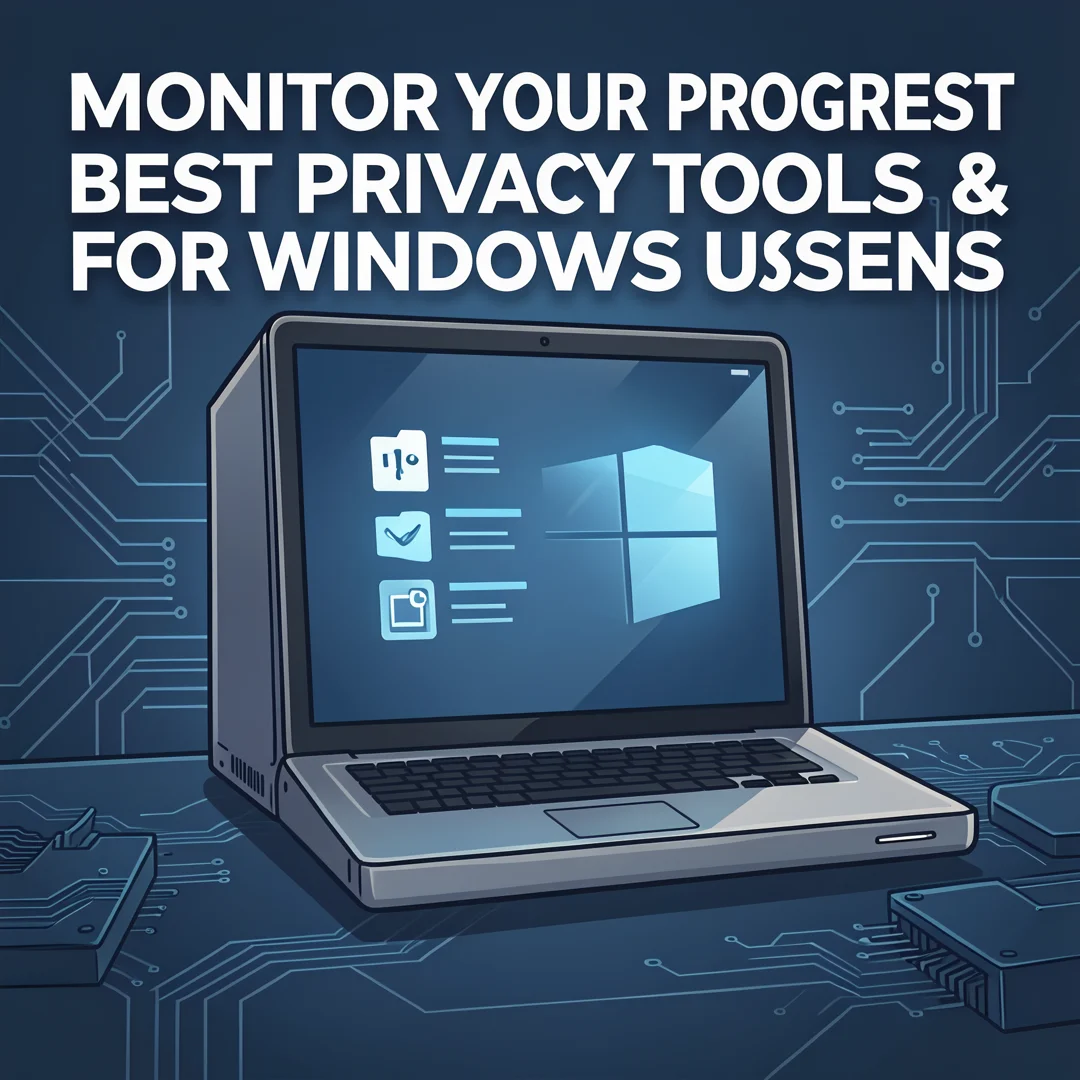
Privacy is not a one-time task. Windows feature updates can silently re-enable telemetry settings, reset defaults, or remove your DNS configuration. Schedule a monthly review: check that your tools are still running, verify settings have not reverted, and review any logs your DNS blocker or firewall provides. Administrators should compare current configurations against the documented baseline and reapply drift corrections. Keep your tools updated, but test updates in a small group before broad deployment, because privacy utilities occasionally break after major Windows releases.
Best Practices
These habits keep your privacy setup reliable over time:
- Verify architecture every time. Always verify software compatibility with your hardware architecture (ARM64 vs x86) before downloading, especially on Surface devices and other ARM laptops.
- Update Windows first. Keeping your operating system updated before installation prevents dependency conflicts caused by missing runtimes or outdated certificates.
- Change one thing at a time. Batch changes make troubleshooting nearly impossible when something fails.
- Create restore points. System Restore is the fastest rollback path for risky hardening scripts.
- Use the minimum number of tools. Overlapping ad blockers, firewalls, and VPNs can conflict and leak data.
- Prefer audited, open-source software. Independent review is stronger evidence than marketing claims.
- Document everything. Administrators should maintain a change log with dates, tool versions, and settings applied.
- Separate work and personal profiles. Distinct user accounts reduce cross-contamination of data and settings.
- Review permissions. Audit which applications have microphone, camera, and location access, and revoke what is unnecessary.
- Do not rely on a single layer. Combine DNS filtering, browser hardening, and encryption for defense in depth.
Also remember that privacy tools are only as good as their configuration. A VPN with a leaky DNS setup, or an ad blocker that you disabled for a streaming site and never re-enabled, provides far less protection than the documentation suggests. Periodic verification is essential.
FAQ
How long does it take to complete Best Privacy Tools for Windows Users?
For a single home PC, expect one to two hours for the full sequence: assessment, Windows privacy settings, encrypted DNS, a DNS blocker, browser configuration, and BitLocker. Adding a VPN and a system hardening tool extends this to roughly three hours. For IT administrators deploying across a fleet, plan for a pilot phase of one to two weeks on a small group, followed by staged rollout. The initial setup is quick; ongoing.
You now have a complete workflow for Best Privacy Tools for Windows Users. Keep your system updated, monitor resource usage, and revisit this guide when software versions change.
Next steps: harden your server firewall, set up automated backups, and explore related tutorials linked above.