
Installing a new operating system can feel daunting, but learning how to install Windows 11 step by step is simpler than you might think. Whether you are a beginner setting up a home PC or an IT administrator deploying across multiple workstations, a clear process saves time and prevents costly mistakes.
This guide walks you through every stage, from checking system requirements and creating bootable media to completing the setup and post-install configuration. Follow along to get Windows 11 running smoothly and securely on your hardware.
Introduction
Windows 11 is Microsoft’s current desktop operating system, and installing it has become a routine task for beginners and IT administrators alike. The process is well documented, but small details — firmware mode, disk layout, TPM availability, and driver injection — can make the difference between a smooth upgrade and a failed deployment. This guide covers How to Install Windows 11 Step by Step in practical, step-by-step detail, with special attention to the ASUS Ryzen laptop, a very common target machine for both home users and managed fleets.
There are two broad installation routes. The first is an in-place upgrade from Windows 10, which preserves files and applications and takes roughly 30 to 60 minutes on modern hardware. The second is a clean installation from USB media, which wipes the drive and typically takes 20 to 45 minutes. IT administrators often choose the clean install because it produces a predictable baseline and simplifies imaging. Beginners can follow the same steps; the only real difference is how much caution you apply to backups.
Always verify software compatibility with your hardware architecture (ARM64 vs x86). Windows 11 ships in x64, ARM64, and, in some channels, x86-compatible builds for older hardware, but an ARM64 image will not boot on an x64 processor and vice versa. Keeping your operating system updated before installation prevents dependency conflicts, especially when you run setup from within an existing Windows environment. Firmware, chipset, and storage drivers should also be current before you begin.
Prerequisites
Before you download anything, confirm that the target machine meets Microsoft’s minimum requirements and that you have the tools to complete the job. For an ASUS Ryzen laptop, most models from 2020 onward already satisfy these conditions, but verification takes only a few minutes.
- Processor: 1 GHz or faster with 2 or more cores on a compatible 64-bit processor or System on a Chip (SoC). Ryzen 2000-series and newer are on Microsoft’s supported list.
- RAM: 4 GB minimum, though 8 GB is strongly recommended for daily use.
- Storage: 64 GB or larger. A clean install of Windows 11 uses roughly 20 to 30 GB.
- System firmware: UEFI with Secure Boot capability. Legacy BIOS mode is not supported for the standard consumer installation.
- TPM: Trusted Platform Module version 2.0. On ASUS Ryzen laptops this is usually an AMD firmware TPM (fTPM) that must be enabled in BIOS.
- Graphics: DirectX 12 compatible graphics with WDDM 2.0 driver.
- Display: 9-inch or larger screen with 720p resolution.
- Internet: A wired or wireless connection. Windows 11 Home requires internet and a Microsoft account during setup.
In addition to the hardware list, gather administrative credentials, BitLocker recovery keys, and any domain or Microsoft 365 account details you will need after installation. IT administrators should also confirm that their deployment tooling, such as Microsoft Endpoint Configuration Manager or Intune, supports the Windows 11 build they plan to deploy.
Preparation
Preparation is where most installations succeed or fail. Do not skip this section, even if you have installed Windows many times before.
Check compatibility and updates
Run the PC Health Check app to confirm eligibility. Then update the existing operating system, firmware, and drivers. Keeping your operating system updated before installation prevents dependency conflicts and reduces the chance that setup will fail midway through driver enumeration. On an ASUS Ryzen laptop, use MyASUS or the ASUS support site to update the BIOS and chipset drivers. Never flash BIOS on battery power.
Back up your data
A clean install erases everything on the target partition. Copy documents, photos, browser profiles, and application license keys to an external drive or cloud storage. If BitLocker is enabled, suspend or back up the recovery key first; otherwise you may be prompted for a key you no longer have.
Create installation media
You will need an 8 GB or larger USB flash drive. The Windows Media Creation Tool or the official Windows 11 ISO from Microsoft’s website both work. Use a reputable tool such as Rufus or the Media Creation Tool to write the image. Verify the architecture: ARM64 media is for Snapdragon-based devices, while x64 media is for Intel and AMD machines such as the ASUS Ryzen laptop.
Gather drivers in advance
Download the storage, chipset, Wi-Fi, and GPU drivers for your exact model and place them on a second USB drive. Windows 11 setup includes many drivers, but AMD RAID configurations and some Wi-Fi chips still require manual injection.
Installation Steps
The following steps apply to an ASUS Ryzen laptop, but the logic carries over to most modern PCs. Read each step fully before acting.
Step 1: Verify system requirements on your ASUS Ryzen laptop
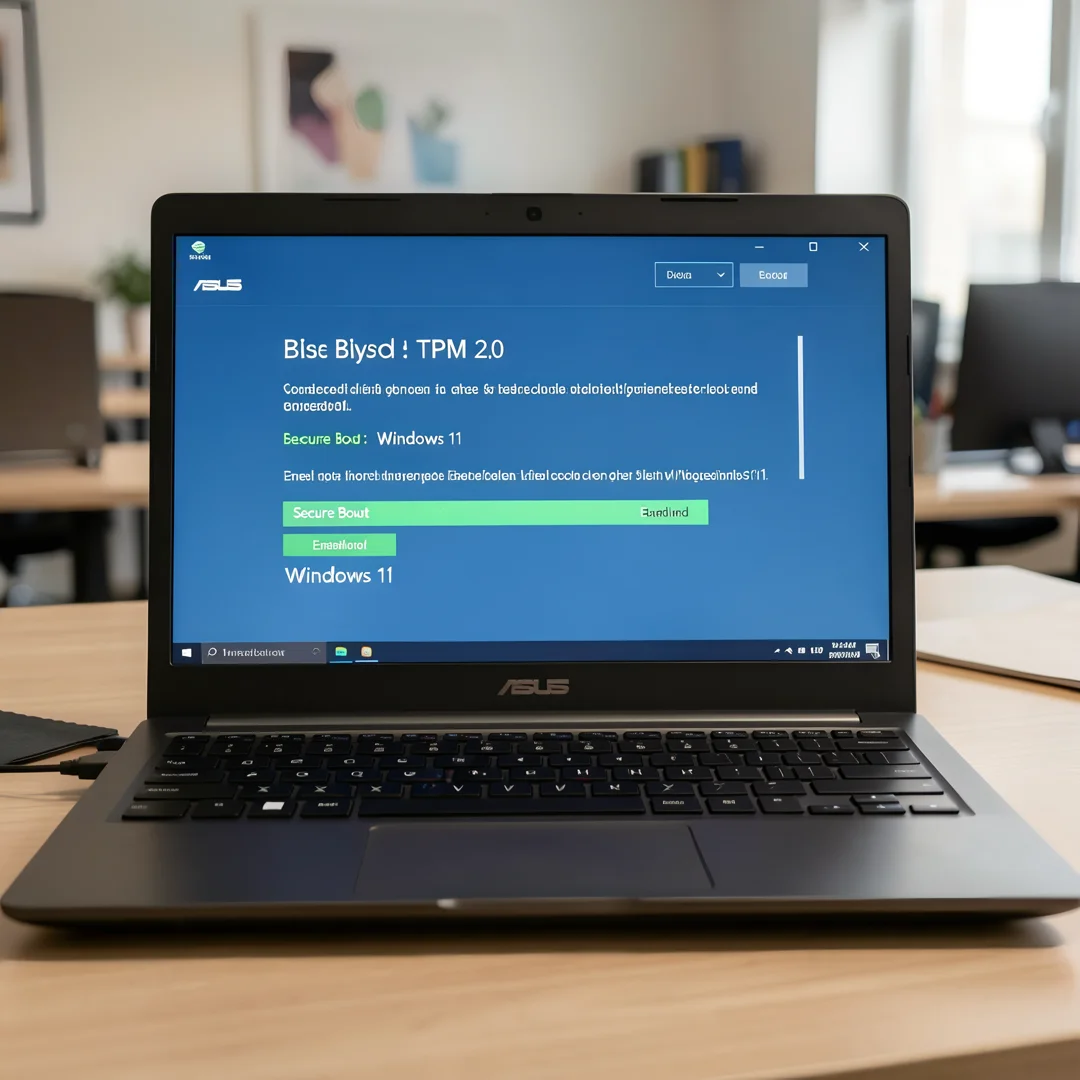
Boot into Windows 10 (or your current OS) and open the PC Health Check tool. Confirm that TPM 2.0 and Secure Boot are reported as enabled. If TPM is missing, restart and enter BIOS by pressing F2 during boot, then look under Advanced or Security for AMD fTPM or PTT and enable it. Save and exit with F10. Record the BIOS version and note whether the laptop is set to UEFI mode; a clean Windows 11 install requires UEFI, not CSM or Legacy.
For IT administrators, this is also the moment to confirm the asset is in scope for the deployment ring and that the firmware baseline matches your organization’s standard.

Step 2: Back up your files and note recovery information
Connect an external drive and copy all user data. Export browser bookmarks, note any locally stored credentials, and capture the BitLocker recovery key if the drive is encrypted. Write down the Windows product key if your license is not digitally linked to a Microsoft account. Digital licenses tied to the hardware will reactivate automatically after reinstall, but retail keys and volume licenses may require manual entry. Once the backup is verified — open a few files to confirm they copied correctly — you can proceed.

Step 3: Create Windows 11 installation media on a USB drive
Insert the USB drive and run the Media Creation Tool. Choose “Create installation media for another PC,” select the language and edition, and pick 64-bit (x64) for Intel or AMD hardware. If you prefer the ISO route, download the ISO, then use Rufus with GPT partition scheme and UEFI target. The tool will format the drive, so make sure nothing else is on it. When finished, safely eject the USB drive.
If you are deploying to multiple machines, create the media once and keep a spare. Administrators may prefer to add an autounattend.xml file to the root of the USB drive for unattended installation.

Step 4: Configure ASUS BIOS for Windows 11 installation
Insert the USB drive, restart the laptop, and press F2 repeatedly to enter BIOS. Set the following options:
- Secure Boot: Enabled
- Fast Boot: Disabled (avoids timing issues when booting from USB)
- CSM / Legacy Boot: Disabled
- Boot order: USB drive first
- SATA mode: AHCI for single-drive systems; keep RAID only if you have pre-loaded the AMD RAID driver
Press F10 to save and exit. The machine should boot from the USB drive. If it boots back into the old OS, re-enter BIOS and confirm the USB entry appears in the boot override menu (usually Esc or F8 on ASUS models).
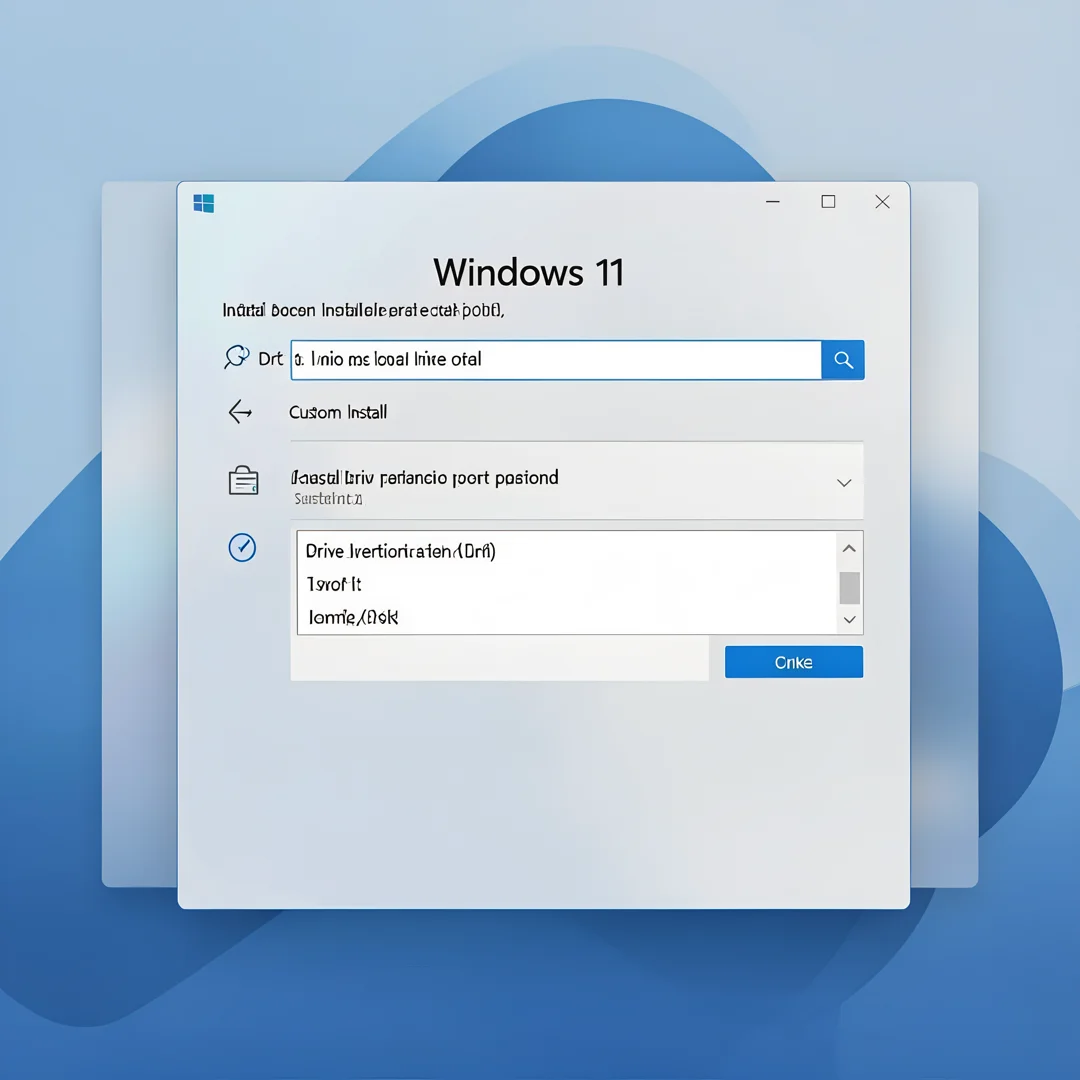
Step 5: Start the Windows 11 setup and partition the drive
When the Windows Setup screen appears, choose your language, time, and keyboard, then click “Install now.” Select the edition you are licensed for, accept the license terms, and choose “Custom: Install Windows only (advanced).” The partition list appears. For a clean install, delete all existing partitions until only unallocated space remains, select it, and click Next. Windows will create the required EFI, MSR, and primary partitions automatically.
If you see an error about the drive being GPT or MBR, the disk was previously initialized in the wrong scheme. Shift+F10 opens a command prompt; use diskpart to clean the disk, then refresh the list. Never clean a disk that contains data you still need.
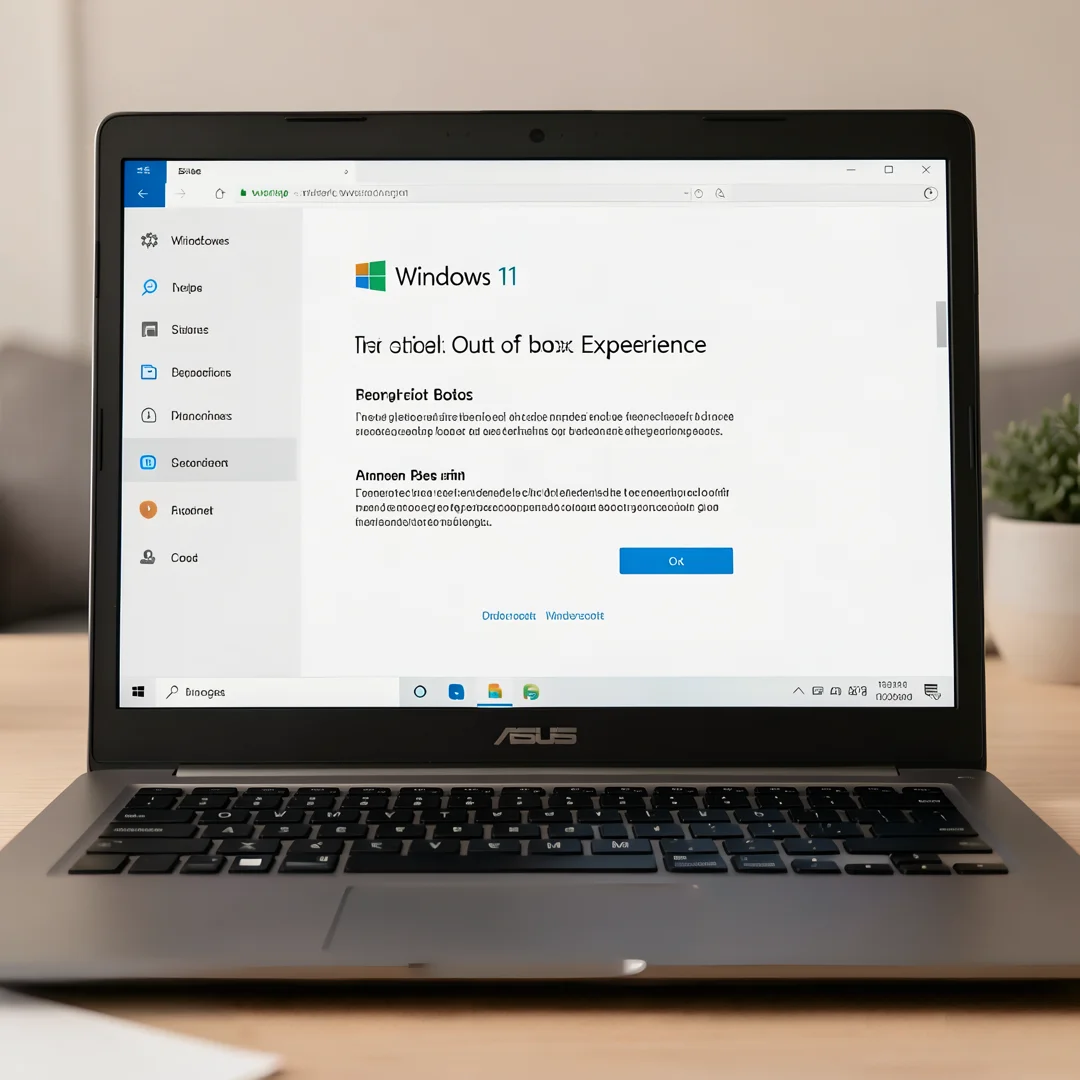
Step 6: Complete initial Windows 11 configuration
Setup will copy files and reboot several times. When the out-of-box experience begins, choose your region and keyboard layout, then connect to a network. Windows 11 Home requires a Microsoft account; Pro and Enterprise offer a domain join option. Sign in, set a PIN, and review privacy settings. Once you reach the desktop, immediately run Windows Update, install the chipset and GPU drivers you downloaded earlier, and reactivate Windows if necessary. Administrators should then join the device to Entra ID or the on-premises domain and apply their configuration baseline.
Post-Installation
A finished installation is not a finished system. Take these steps before handing the machine to a user.
- Run Windows Update repeatedly until no updates remain, including optional driver updates.
- Install vendor software such as MyASUS for firmware and power management on ASUS laptops.
- Verify device Manager shows no unknown devices.
- Enable BitLocker or your organization’s disk encryption standard.
- Create a restore point or capture a reference image for future deployments.
- Reinstall essential applications and restore user data from your backup.
- Confirm activation status under Settings > System > Activation.
- For administrators: validate that security baselines, endpoint protection, and management agents are reporting correctly.
Test sleep, Wi-Fi, audio, and function keys, since these are the areas most often affected by missing drivers.
Troubleshooting
Most problems have known causes. Use the following guidance to diagnose failures quickly.
- “This PC can’t run Windows 11”: TPM, Secure Boot, or a CPU generation check failed. Re-enter BIOS and enable fTPM and Secure Boot. Confirm the processor is on the supported list.
- Setup cannot find the drive: The storage controller needs a driver. Load the AMD RAID or NVMe driver from your second USB drive using the “Load driver” option.
- Boot loop after installation: Disconnect the USB drive and confirm the boot order points to the internal SSD. Check for a pending firmware update.
- Installation hangs or fails midway: Recreate the USB media; corrupted downloads are common. Try a different USB port and a different drive.
You now have a complete workflow for How to Install Windows 11 Step by Step. Keep your system updated, monitor resource usage, and revisit this guide when software versions change.
Next steps: harden your server firewall, set up automated backups, and explore related tutorials linked above.