
Managing files on Windows can quickly become overwhelming, whether you’re a beginner organizing personal documents or an IT administrator handling thousands of workstations. The right tools turn chaos into order, saving time, reducing errors, and keeping your data secure.
In this guide, we’ll explore the best file management tools for Windows, covering everything from simple drag-and-drop utilities to advanced solutions built for enterprise environments. Whether you need faster search, bulk renaming, or automated backups, there’s a tool here for you.
Introduction
Managing files on Windows can feel overwhelming whether you are a beginner organizing personal documents or an IT administrator overseeing hundreds of machines. Windows Explorer, the default file manager, has improved over the years, but it still lacks advanced features like tabbed browsing in older versions, robust bulk renaming, duplicate detection, and cross‑platform cloud integration out of the box. That is where third‑party file management tools come in. They fill the gaps, automate repetitive tasks, and give you a clearer view of your storage landscape.
This guide covers Best File Management Tools for Windows in practical, step‑by‑step detail. We will explore what makes a tool worth your time, how to evaluate your own needs, and how to safely install and configure the right solution. Whether you are cleaning up a cluttered Downloads folder or deploying a standardized file manager across an enterprise, the same principles apply. By the end, you will have a concrete plan to choose, install, and master a file management tool that fits your workflow.
Before diving in, remember one critical rule: always verify software compatibility with your hardware architecture (ARM64 vs x86). Many popular tools are compiled only for x86‑64, and while Windows on ARM can emulate them, performance and stability may suffer. Installing the wrong build can lead to crashes or missing features. With that in mind, let us start with the core concepts that separate a basic file manager from a powerful one.
Key Concepts
File management tools are not all created equal. To pick the right one, you need to understand a few foundational ideas. These concepts apply whether you are a home user with a single PC or an admin managing a fleet of workstations.
File Manager vs. File Explorer
Windows File Explorer is the built‑in tool. It handles basic copy, move, delete, and search. A third‑party file manager typically adds features like dual‑pane views, tabbed interfaces, batch renaming, advanced filtering, FTP/SFTP support, and integration with cloud storage. Some tools, like Total Commander or Directory Opus, replace Explorer entirely. Others, like Everything or TreeSize, complement it by focusing on search or disk usage analysis.
Architecture and Compatibility
Windows runs on two main processor architectures: x86‑64 (most Intel and AMD PCs) and ARM64 (Surface Pro X, Lenovo ThinkPad X13s, and others). A tool built for x86‑64 will run on ARM64 through emulation, but it may be slower and could fail with hardware‑specific features. Always check the vendor’s download page for an ARM64 native build. If none exists, test the x86 version carefully before rolling it out widely.
Dependencies and System Requirements
Some file managers rely on the .NET Framework, Visual C++ Redistributables, or Java. If those dependencies are missing or outdated, the tool may not launch. Keeping your operating system updated before installation prevents dependency conflicts. Windows Update often delivers the latest runtime libraries, so run it first. For IT admins, this means ensuring a patch management policy is in place before deploying new software.
Licensing and Deployment Models
Tools range from free and open‑source (e.g., Double Commander, FreeCommander) to paid one‑time licenses (e.g., Directory Opus) to subscription‑based (e.g., some cloud‑integrated managers). For enterprise use, check for silent install options, group policy support, and per‑seat licensing. A free tool may be perfect for a single user but lack the centralized management an IT department needs.
- Portable vs. installed: Portable tools run from a USB drive without installation, useful for troubleshooting.
- Shell integration: Some tools add right‑click context menu entries; others operate in their own window.
- Cloud and network support: Look for built‑in connectors to OneDrive, Google Drive, SMB, SFTP, and WebDAV.
Deep Dive
Now that you understand the landscape, let us examine the leading categories of file management tools and what they do best. This is not a simple list; it is a breakdown of strengths so you can match a tool to your specific pain points.
Dual‑Pane File Managers
Tools like Total Commander, Directory Opus, and Double Commander show two folders side by side. This makes copying and moving files between locations far faster than dragging between two Explorer windows. They support keyboard shortcuts, batch renaming with regular expressions, and built‑in file viewers. Directory Opus is highly customizable but paid; Double Commander is free and cross‑platform. For beginners, the dual‑pane layout may feel unfamiliar at first, but the productivity gain is worth the short learning curve.
Search and Indexing Tools
Windows Search can be slow and unreliable. Everything, a free tool from Voidtools, indexes NTFS volumes in seconds and returns results instantly as you type. It supports wildcards, regex, and advanced filters. For IT admins, Everything can be deployed silently and used to locate files across mapped drives. Another option is Listary, which integrates with Explorer and provides quick search from any window.
Disk Usage Analyzers
When your drive is full and you do not know why, tools like TreeSize Free, WinDirStat, and WizTree visualize folder sizes. WizTree reads the Master File Table directly, making it extremely fast on NTFS. These tools help you identify large files, duplicate folders, and forgotten downloads. They are essential for routine maintenance and for clearing space before a Windows feature update.
Cloud and Sync Managers
If you work across devices, a file manager with cloud integration saves time. Cyberduck and WinSCP handle FTP, SFTP, and WebDAV. RaiDrive mounts cloud storage as a local drive. For Microsoft 365 users, OneDrive Files On‑Demand is built into Windows, but third‑party tools like Air Explorer can manage multiple cloud accounts in one interface. Always check encryption and authentication methods before storing sensitive data.
Automation and Scripting
Advanced users and admins can automate file operations with PowerShell, but GUI tools like File Juggler or DropIt add rule‑based automation without coding. You can set rules like “move all PDFs older than 30 days to Archive folder” or “rename files based on content.” These tools reduce human error and free up time for strategic work.
When evaluating any tool, test it in a virtual machine or a non‑production environment first. Verify that it does not conflict with existing antivirus or backup software. Also confirm that it supports long file paths (over 260 characters) if you work with deep folder structures. Windows 10 and 11 can enable long paths via Group Policy, but the tool itself must also be compatible.
Step-by-Step Guide to Choosing and Using a File Management Tool
Follow these steps to go from confusion to a working setup. Each step builds on the previous one, so do not skip ahead.
Step 1: Understand the fundamentals
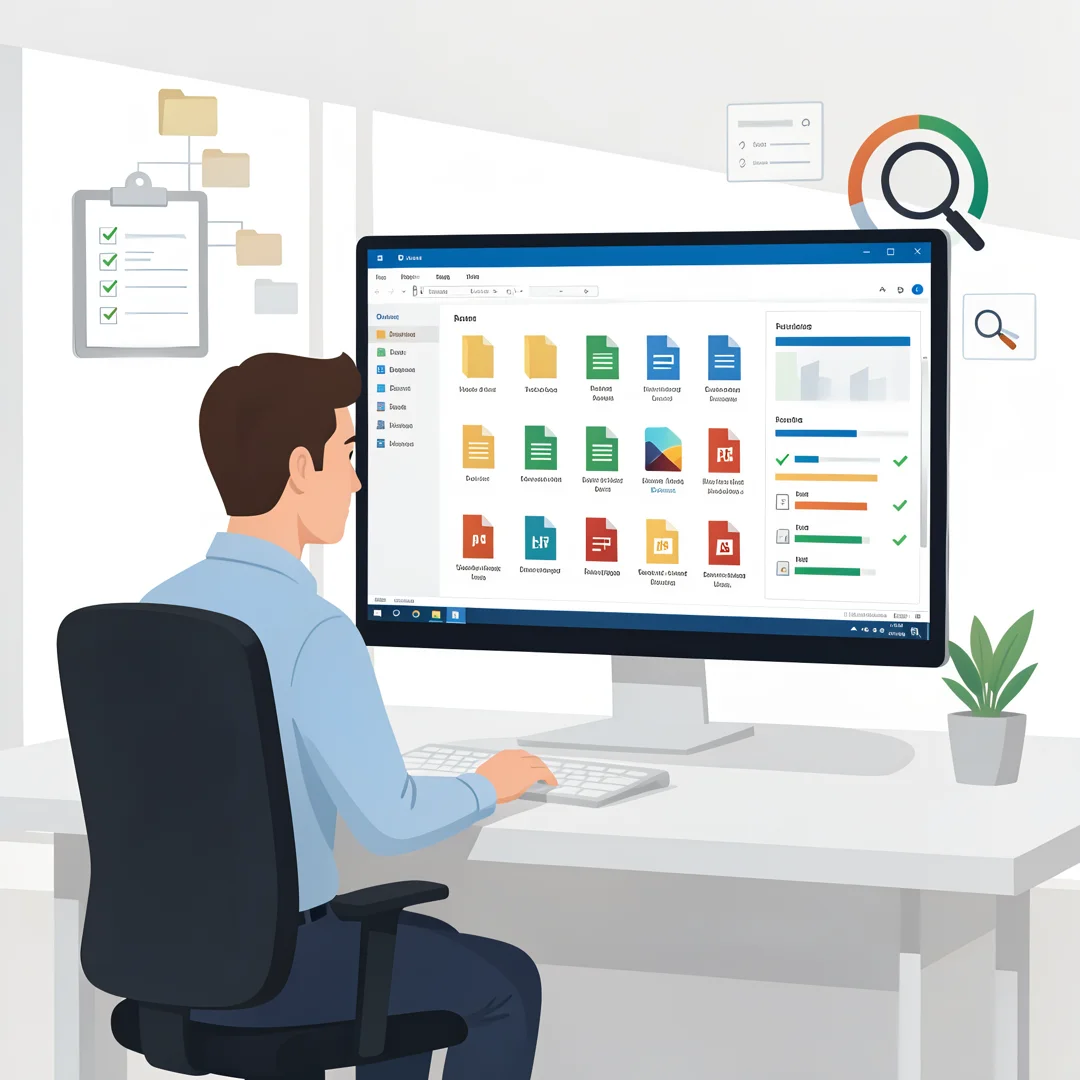
Before downloading anything, clarify what file management means in your context. Are you trying to find files faster, free up disk space, sync across devices, or automate repetitive tasks? Write down your top three frustrations with Windows Explorer. For example: “I cannot find files by content,” “I waste time copying between folders,” or “I have no idea what is taking up 200 GB.” These pain points will guide your tool selection. Also note your Windows version (10 or 11), your processor architecture (x86‑64 or ARM64), and whether you have admin rights to install software.
Step 2: Assess your starting point
Open File Explorer and check your current setup. How many drives do you have? Are they NTFS, exFAT, or network shares? Do you use OneDrive or another cloud service? Run a quick disk cleanup to see baseline free space. If you are an IT admin, inventory the machines you manage: how many are ARM64? What is your software deployment method (Intune, SCCM, Group Policy)? Document any existing file management tools already in use to avoid duplication. This assessment prevents you from buying or installing a tool that duplicates features you already have.
Step 3: Set clear goals
Turn your pain points into measurable goals. “Find files faster” becomes “reduce average file search time from 30 seconds to under 3 seconds.” “Free up space” becomes “reclaim at least 50 GB on the system drive.” “Automate” becomes “set up a rule that moves all screenshots older than 7 days to a subfolder.” Clear goals make it easy to compare tools. For IT admins, goals might include “deploy to 50 workstations with zero user intervention” or “ensure compliance with data retention policies.” Write these goals down and refer to them during evaluation.
Step 4: Gather necessary resources
You will need a test machine or virtual machine, a list of candidate tools, and time to trial each one. Start with free versions or trials. Download links should come from official vendor websites, never third‑party download portals that bundle adware. Check the system requirements: RAM, disk space, .NET version, and architecture. For ARM64 devices, search specifically for “ARM64” on the vendor’s site. If you are an admin, prepare a test group of users and a rollback plan. Also gather any existing documentation about your network drives and permissions.
Step 5: Apply the core methods
Install one candidate tool at a time on your test machine. Run through a typical workflow: search for a file, copy a folder, rename a batch of files, and check disk usage. Time yourself and note any crashes or slowdowns. For IT admins, test silent installation switches (e.g., /S, /silent, /qn) and verify that the tool works under a standard user account, not just an admin account. If the tool integrates with Explorer, check that the context menu does not become cluttered. Repeat for each candidate. Keep a simple scorecard: features, speed, stability, ease of use, and licensing cost.
Step 6: Monitor your progress
After choosing a tool, deploy it to a small group first. Collect feedback: Did search speed improve? Did anyone experience conflicts with antivirus? For personal use, track your own time savings over a week. For enterprise, use monitoring tools to check for application errors in Event Viewer. Revisit your goals from Step 3—did you meet them? If not, adjust settings or consider a different tool. Schedule a quarterly review to ensure the tool still fits your needs and that updates have not introduced new issues. Remember to keep Windows updated; a patch may change how the tool.
You now have a complete workflow for Best File Management Tools for Windows. Keep your system updated, monitor resource usage, and revisit this guide when software versions change.
Next steps: harden your server firewall, set up automated backups, and explore related tutorials linked above.